
Vixel guides
How to make animated YouTube Shorts with AI
A little robot has one job: water a plant. Then it trips. That’s a story you can tell on a phone screen without a long introduction. Here’s how to plan it, test the movement and put the short together.
By Vixel team · Updated
Your idea is filled in. Edit it, then ask for a script.
Watch how Bella’s 56-second film gives a small action a clear payoff. It is a landscape storytelling reference. Our separate robot exercise is planned for a 9:16 vertical frame.
Let’s make: A small animated story planned for a vertical screen, with a script, shot-review checklist and a path toward an export you can upload yourself.
01
Start with an action the viewer can understand
For your first animated YouTube Short, choose one character, one small problem and a visible payoff. Aim for a 30-second practice story to keep your first project manageable.
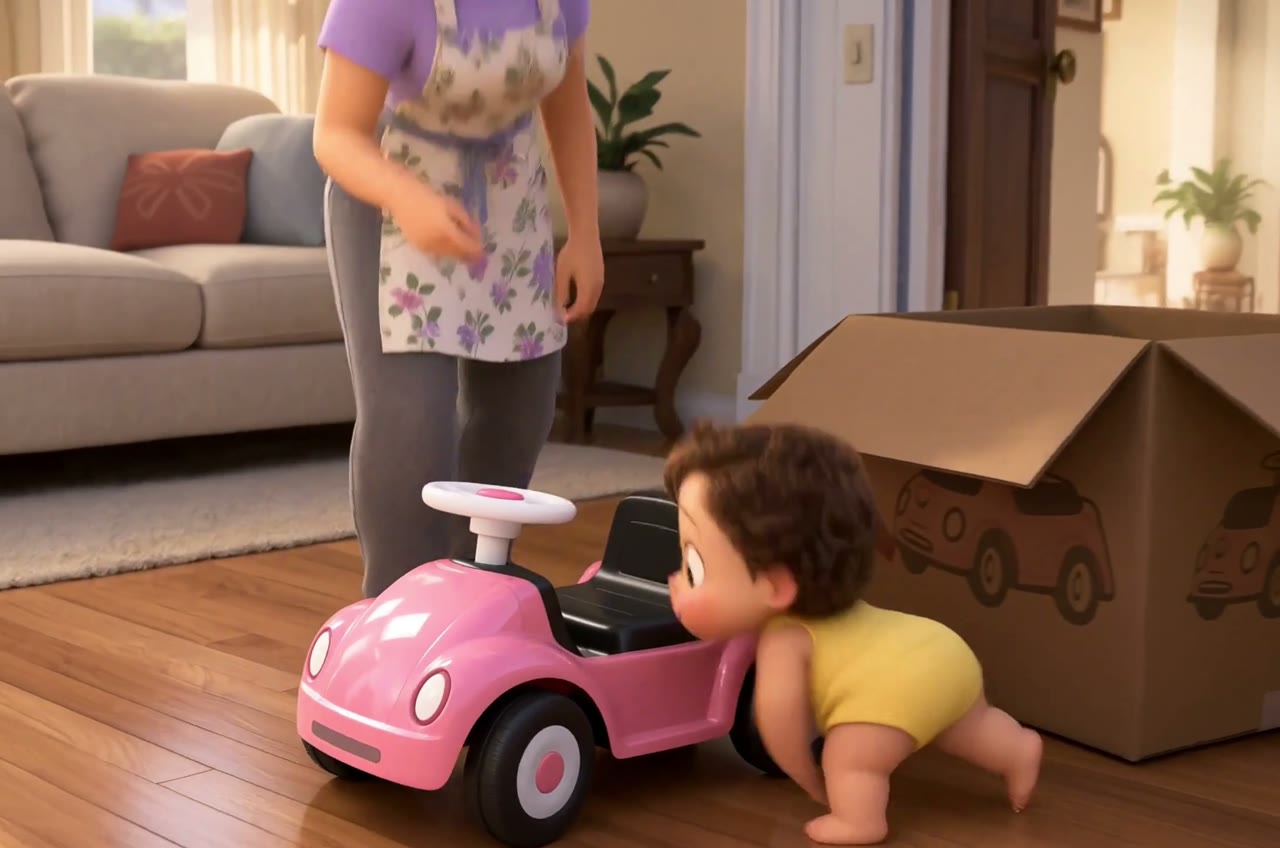
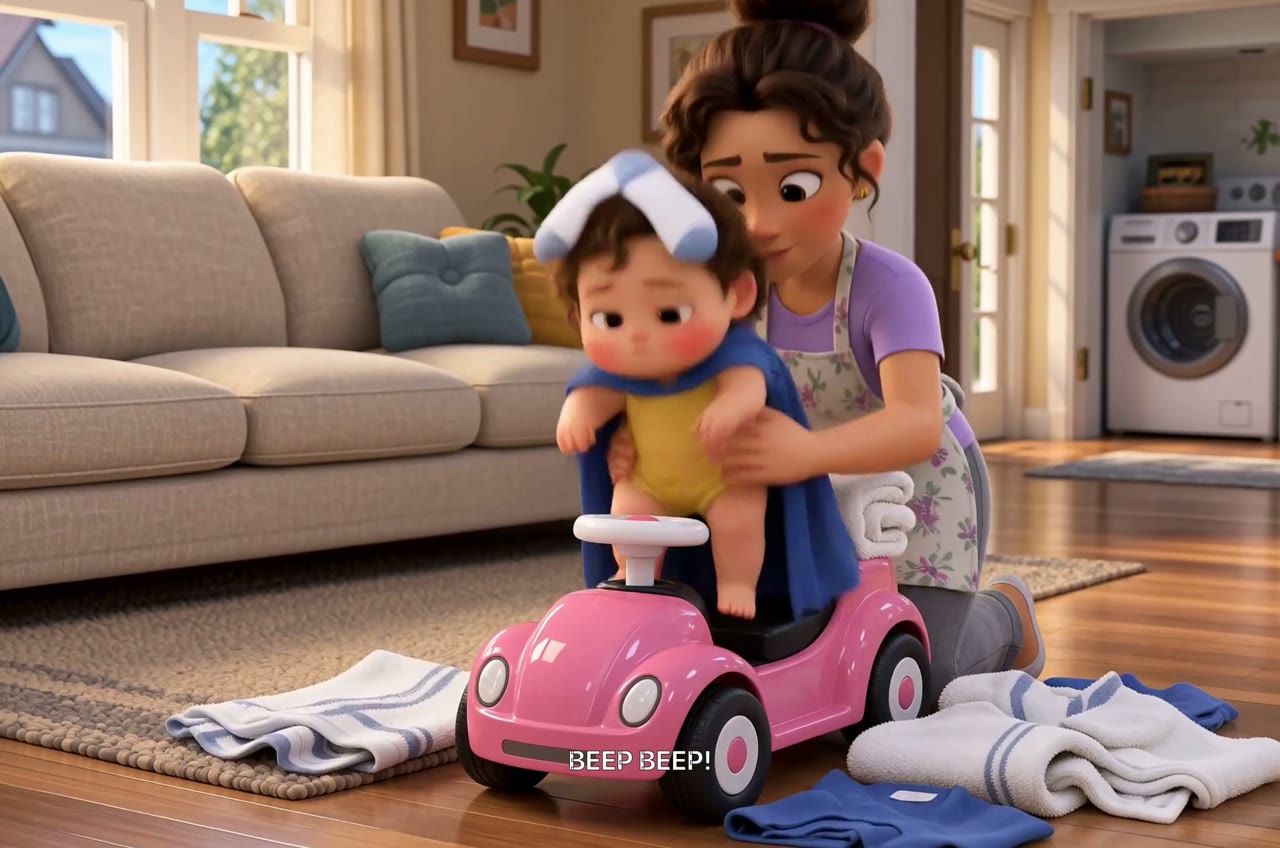
In Bella’s Special Delivery, the toy car makes the delivery game visible. Borrow that principle for an original story: show the goal with an object or action before adding explanation. Choose the audience and tone that suit your channel: a family comedy, a tiny adventure or a visual joke.
02
Write the script for a vertical frame
Open the practice brief, ask for a script first and review it before moving to shots. Specify a 9:16 vertical composition in the brief, then check the actual aspect-ratio options in your generation and export settings. A text request does not change every setting automatically.
Keep the face, prop and important action readable on a phone. A wide landscape composition may lose its meaning when cropped. Reframe the shot if the character’s hand, the cup or the plant would disappear at the sides.
03
Establish the character, then test one shot
Choose an original 2D or stylized 3D cartoon direction. Review a character reference and the balcony setting before producing the shot images. Carry forward recognizable shapes and colors, and check that the cup and plant stay in the same state across neighboring shots.
Generate one reviewed shot before producing the rest. Inspect the motion, hands, water and character appearance. Correct the specific mismatch rather than changing every instruction at once. AI animation can require several revisions.
04
Work through a 30-second shot plan
Here’s a rough edit for the robot story. Use it to feel the rhythm, then adjust after you see the shots. Choose durations supported by your video tool and trim the accepted clips when needed. This is a practice plan, not a completed production log.
05
Review the complete edit before uploading
Bring accepted clips together on the timeline. Check the cut from the spill to the seedling: the viewer needs to understand where the water went. Review captions and sound, and preview the full sequence on a phone before sharing.
Use the export options available in your workspace and inspect the resulting file’s shape and duration. If a finishing step you need is unavailable there, complete it in your video editor. Upload the finished file through YouTube when you are ready.
YouTube’s current upload guidance accepts square or vertical Shorts up to three minutes. This exercise aims for 30 seconds to keep the first project small. Check the linked YouTube requirements when you are ready to upload, including the relevant audience and audio settings.
06
Track what it took to finish
Image and video generation uses credits. Review the displayed cost before each generation and record what you actually spend on references, clips and retries. The total depends on the shots, settings and revisions you choose. This practice brief has not been produced as a complete film, so there is no measured production budget to copy.
For your next Short, keep the parts that worked and change one clear element, such as the opening action or ending. If you publish, use your own channel’s results to decide what to try next. Compare how viewers respond to the opening and where they stop watching before choosing your next revision.
Make the next little mishap yours
Keep the robot, or give the job to an original character you love. The brief opens with the story and vertical format ready to edit. Ask for a script when you’re happy with it.
Plan my animated ShortPaid media uses credits. Check current plans.
Written by the Vixel team. About our guides and examples. If a step needs correcting, let us know.
Start with the task in front of you
Find a character, shape the ending and develop a story draft with Director.
Plan a single action and refine it in the video workspace.
Develop a character or a visual direction before producing your shots.
Turn a product message into a script and shot sequence with Director.