
Vixel guides
How to make an AI music video from a photo and a song
Which part of your song can you already picture? Maybe it’s the chorus you keep replaying, or a quiet line that needs nothing more than a look to camera. Bring that passage and a photo of your performer. We’ll start with a small scene and give it somewhere to go.
By Vixel team · Updated
Let’s make: A fifteen-second music-video plan: a performer steps out of an arcade, moves with the music on a rain-lit street and spots a friend. Use it as a practice brief, then make the setting and story your own.
01
Start with a passage you love
Upload a song you have permission to use and listen for a passage with a little shape of its own: a vocal entrance, a lift in energy, a line that lands. A short chorus is a good place to try your first scene. You can work with the whole song too.
For this example, we made a fifteen-second instrumental and used it from the beginning. There are no vocals to sync; the small lift in energy gives the performer something to move with. For your own song, choose a start and end, then listen once more. Leave the last word room to finish.
If there’s a moment you care about, tell Director: “Turn toward the camera when the melody comes in,” or “Hold the smile through the last note.” If your passage has vocals, add the lyrics and any timing notes you have, then check the proposed cues against the track.
Before you continue: The timings below describe our brief. Watch the result too: a requested gesture or cut may land differently in the generated clip.
02
Keep the details that make the performer yours
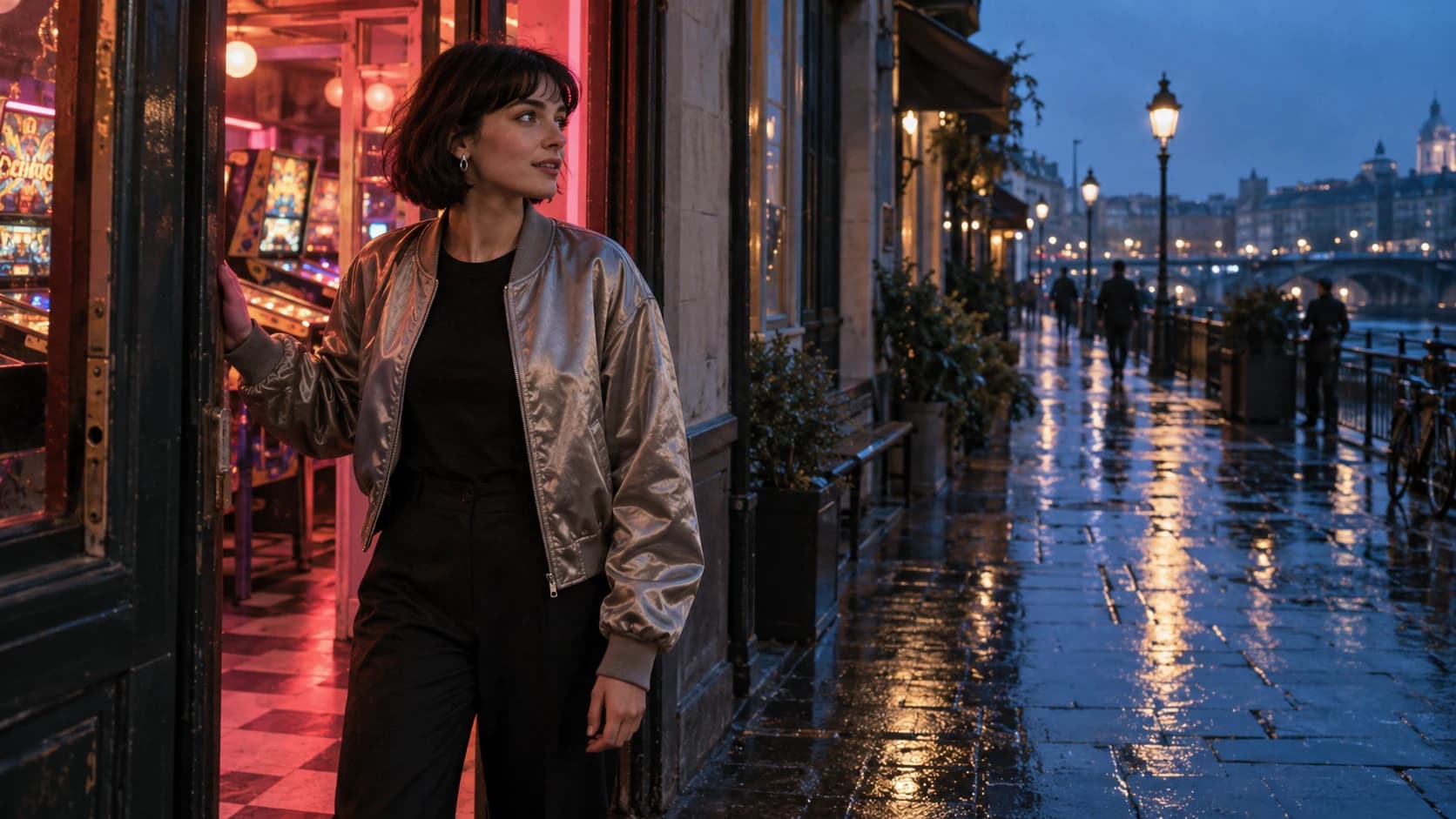
Choose a clear photo where you can see the face, hair and outfit. What would you notice if it changed? A silver jacket, round earrings, the shape of a haircut—pick a few details to carry through every shot.
Our practice performer wears a silver jacket and black trousers. Warm coral light spills out of the arcade; blue evening light catches the jacket outside. The lighting changes, but we should still recognize the same person. Check that first look before making the rest of the scene.
03
Give the performance one small story
Picture the arcade door opening. The performer steps into the street, notices us and turns toward the lens. A relaxed shoulder movement and hand gesture follow the music. Then they spot a friend just beyond the camera. A small smile gives us an ending. We can do all of that in one place.
The door gives us an entrance. The performance brings us closer. The friend gives the final look a reason. These little actions are easier to direct than a long list of moods and camera effects.
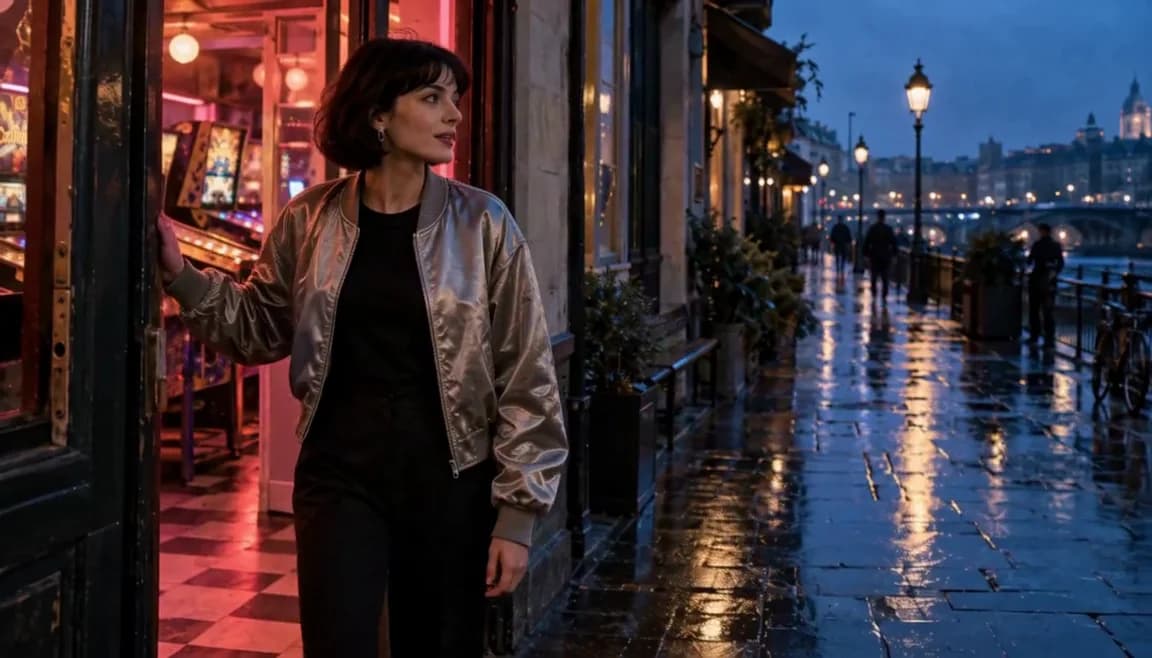
Opening · the doorway establishes where we are. 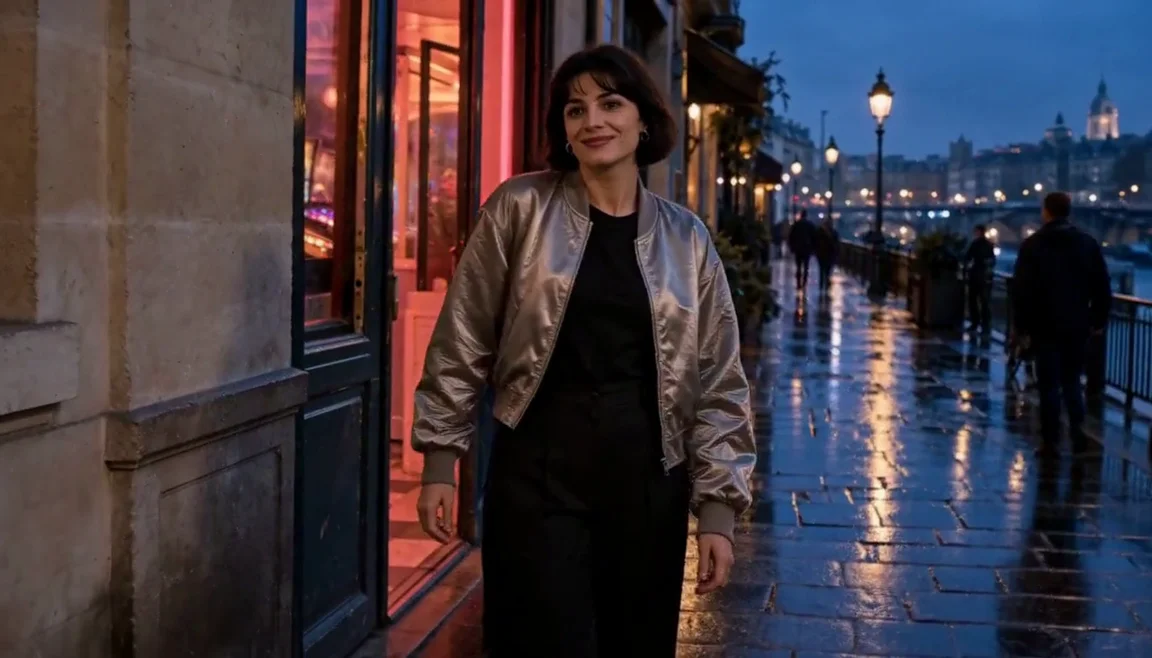
Middle · a closer view keeps the same jacket and street. 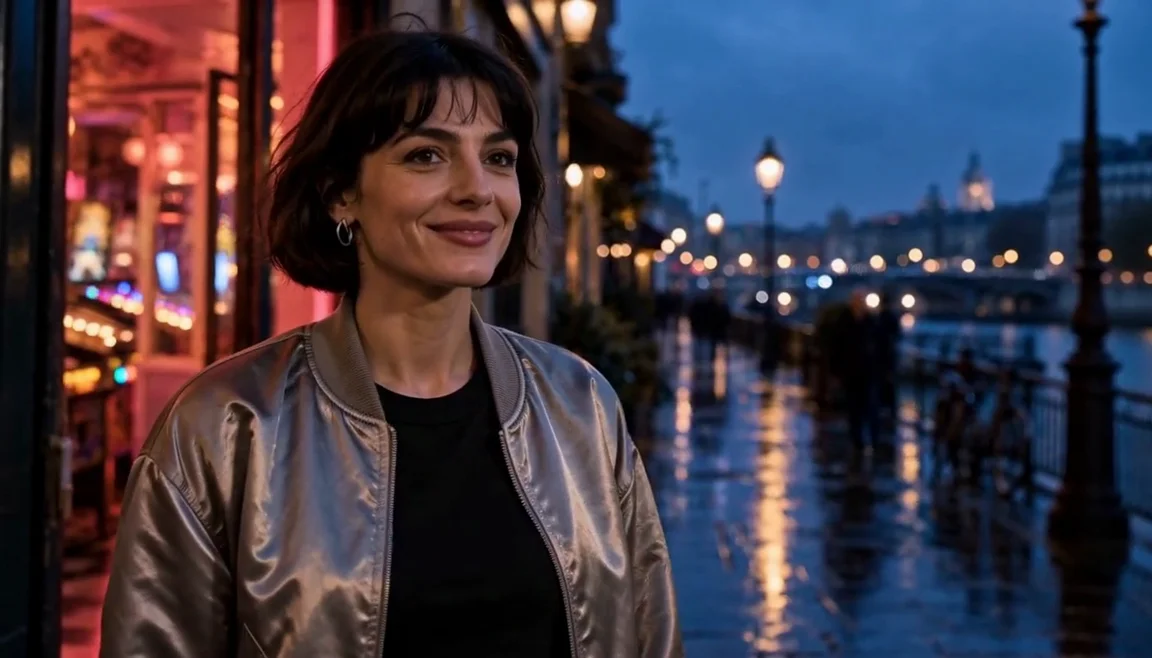
Ending · the smile gives the last moment room to settle.
04
Find the energy in small details
If the song wants a faster pace, look around the scene: shoes splashing through a reflection, a hand catching the light, a friend laughing. A brief cutaway can lift the energy while the vocal keeps playing. Come back to the performer so we know whose night this is.
Cuts every 0.5–2 seconds are choices you make in the edit. Start with usable passages of movement, then pick the moments worth keeping. You don’t need to ask for a separate half-second generation for every cut. Let the final smile stay on screen long enough to feel it.
05
Tell Director what you see
You have a passage, a person and a small story. Put them together in a few sentences. Here’s the arcade idea ready to adapt; change the clothing, place and times to match your files.
06
Try the performance shot, then watch the whole scene
Make the middle shot first: it asks the most of the performer. Watch at normal speed with the song playing. Does the hand gesture feel natural? Is that still the same face and jacket? If your version includes singing, check the mouth against the vocal too. Revise anything distracting before carrying the approach into a longer video.
In our result, the silver jacket and street stay recognizable, and the ending settles on a smile. The performance is restrained; for a more energetic song, we’d ask for a clearer movement and test that shot again.
Once you have the scene, watch the cuts. The arcade door and street should feel connected, and the smile should arrive with enough time to settle. If the pictures finish early, ask for a visual adjustment that keeps the song’s chosen length and original speed.
Then listen without looking. You want one continuous recording, with no doubled vocals or repeated words. If you want a song-only mix, the request below tells Director exactly what to keep. Play the finished file from beginning to end before sharing it.
Questions you might have
- Do I need a performer photo and a song?
- Yes, this template starts with both. Use a photo and recording you have permission to use. If you’re imagining an instrumental visualizer with no performer, describe that direction to Director instead.
- Can I use the whole song?
- Yes. The template accepts MP3, M4A or WAV files up to 32 MB and songs up to six minutes long. You can select the full song or an excerpt of at least five seconds. For a longer video, review the section plan and try a representative shot before producing the rest.
- Will the singing and cuts match the song exactly?
- They still need your review. The audio gives generation a reference, but lip sync can be imperfect and suggested cut times may need adjusting. Check the actual track, especially words, musical changes and the ending. Providing lyrics and timing notes helps make your intention clear.
- Can I make one shot at a time?
- Yes. In ordinary mode, choose the shots you want to generate. Full Managed can continue eligible visual production within the limits you authorize. Both use generation credits, and you should still review the results. If a request is processing or its result is unclear, check its status before starting another.
- Does opening the template spend credits?
- No. It opens an editable starting point. Add your files, review the plan and decide when to continue into generation. Your selected mode, approvals and credit limits still apply.
Which part of your song would you start with?
Bring the passage you keep coming back to. Add your performer photo and song in the Music Video template, choose the section and tell Director what you see. You can change the plan before making the first shot.
Plan my music videoPaid media uses credits. Check current plans.
Written by the Vixel team. About our guides and examples. If a step needs correcting, let us know.
Start with the task in front of you
Find a character, shape the ending and develop a story draft with Director.
Plan a single action and refine it in the video workspace.
Develop a character or a visual direction before producing your shots.
Turn a product message into a script and shot sequence with Director.